The quick version
There are two paths, and which one you need depends on how old your TV is. 2020 and newer: Settings → All Settings → Support → Software Update → Check for Updates. 2019 and older: Settings → All Settings → General → About This TV → Check for Updates. If a guide sends you to the wrong one, that is why the menu does not exist on your set.
LG calls it a software update rather than a firmware update, which is why people end up searching for both. It is the same thing — webOS, the platform the entire TV runs on — and it deserves the same care as any firmware update.
Which menu applies to your TV
LG moved the update menu at webOS 5.0. Anything from the 2020 model year onwards uses the newer path; 2019 and earlier sets use the older one.
| webOS version | Model years | Path |
|---|---|---|
| 6.0 and later | 2021 onwards | All Settings → Support → Software Update |
| 5.0 | 2020 | All Settings → Support → Software Update |
| 4.5 and earlier | 2019 and older | All Settings → General → About This TV |
You do not need to know your webOS version to proceed — open All Settings and look for whichever of Support or General your TV has. That settles it in a couple of seconds.
Updating over the internet
2020 and newer (webOS 5.0+)
- Press the Settings button on the remote.
- Select All Settings.
- Select Support, then Software Update.
- Select Check for Updates. If one is found, confirm and let it install.
2019 and older (webOS 4.5 and earlier)
- Press Settings, then All Settings.
- Select General, then About This TV.
- Select Check for Updates.
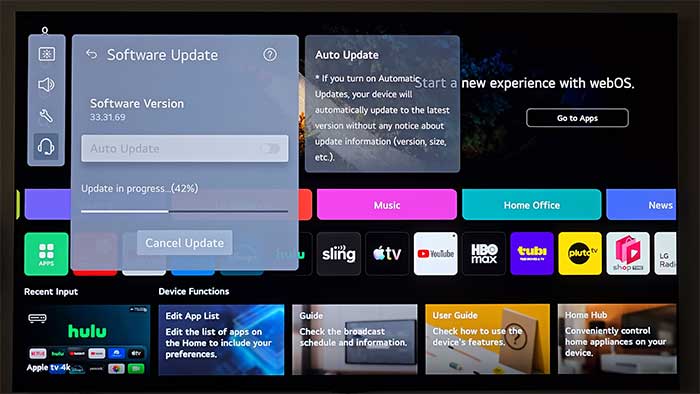
Either way, allow five to fifteen minutes including the restart, keep the TV powered on throughout, and expect the screen to sit unchanged — or go black — for a stretch in the middle. That is normal, not a failure.
Automatic updates
The same Software Update screen carries an Allow Auto Update option (labelled Auto Update on some models). Left on, the TV installs updates by itself, usually while it is idle — which is why a manual check so often reports that you are already current.
Updating by USB
For a TV that has no internet connection, LG publishes firmware for owners to download. The route is through LG’s support site: find Support → Driver S/W, search for your exact model number, and download the software for it.
One honest note about this method: the downloaded zip contains its own update instructions, and they vary by model. Unzip it and read what is inside rather than following generic steps from anywhere — including from us. The folder name the TV expects and the exact procedure differ between series, and getting it wrong usually means the TV simply does not see the file.
Get the model number exactly right
LG model codes carry region and year information in the suffix, and two sets that look identical can need different files. Take the code from the label on the back of the TV or from the About This TV screen, and download only from LG’s own support site. Firmware from a forum or a third-party mirror is the reliable way to end up with a television that will not start.
If it will not update
- Check you are in the right menu for your model year. The single most common reason an LG guide appears not to work.
- Test the network. A weak wireless signal stalls large downloads; ethernet is more reliable if the set has a port.
- Power-cycle at the wall. Unplug, wait a full 60 seconds, plug back in. The remote’s power button only reaches standby.
- “No update available” is usually true. LG releases firmware per model and region — another owner being on a higher version does not mean you are behind.
If the TV is stuck on the LG logo or a black screen after an update rather than failing to find one, stop and read our failed update guide before unplugging it repeatedly.
Should you update?
Generally yes. webOS updates fix HDMI handshake problems with consoles and soundbars, app crashes, and the compatibility work that keeps streaming services running as they raise their requirements. On a TV signed into your accounts and permanently on your network, the security fixes count too.
The caveat is the one every smart TV platform shares: webOS updates have reorganised the home screen over the years and given more room to LG’s own free channels and promoted content. There is no supported way back to an earlier version, so if you are happy with your current layout it is worth knowing that before you press the button. That is a reason to be deliberate, not a reason to fall years behind.
Frequently asked questions
Related: Samsung TV software update · Hisense TV firmware update · check your firmware version. Every TV and streaming guide lives in TV & Streaming.