
If it is still on screen right now: do nothing
Do not unplug it. Do not hold the power button. Do not switch it off at the wall. Most updates that look frozen are still working — the progress bar often tracks only the download, then sits still while the real work happens. Find your device in the table below and wait out that window first.
How long is normal — and when to worry
Almost every “my update is stuck” panic is really a question about time. These are typical ranges. The middle column is the important one: it is normal for nothing at all to appear to happen for that long.
| Device | Typical total | Screen may sit still for | Treat as failed after |
|---|---|---|---|
| Wireless earbuds | 3–10 min | Several minutes | 30 min |
| Smart TV | 5–15 min, often two restarts | Up to 10 min | 30 min |
| Streaming stick | 3–8 min | 5 min | 20 min |
| Wi-Fi router | 3–7 min | 5 min | 15 min |
| Printer | 5–15 min | 10 min | 30 min |
| Game console | 5–20 min | 10 min | 45 min |
| PC BIOS / UEFI | 1–5 min | 3 min | 10 min |
| SSD or external drive | 1–3 min | 2 min | 10 min |
Two signals that the device is alive even when the screen is not moving: a fan or drive you can still hear, and status lights that are blinking rather than solid. A blinking light during an update almost always means work in progress. If a router’s lights are cycling in a pattern you have not seen before, that is usually recovery mode doing its job, not a failure.
Why firmware updates fail
Five causes cover nearly all of them, and knowing which one you are looking at changes what to try:
- The connection dropped mid-download. The most common and least serious — the device usually just reports an error and carries on running the old version.
- Not enough free space. Common on older TVs, streaming sticks and phones. The update downloads, then fails at install with a vague message.
- The manufacturer’s servers are busy or the release was pulled. Update day for a popular console or TV platform can mean hours of failures that fix themselves.
- The wrong file, on a manual update. A file for a different model or hardware revision. This is the one that causes real damage.
- Power lost during the write. The serious case, and the reason for everything on this page. Here is what is happening during that window.
The safe recovery order
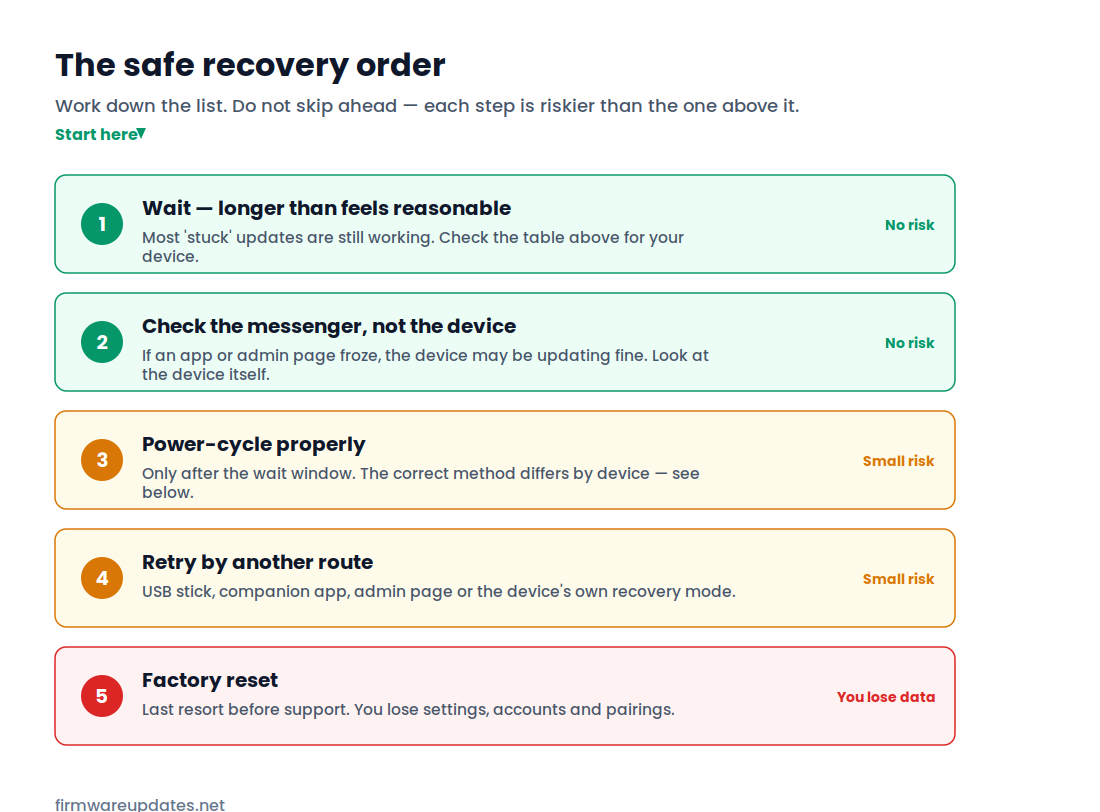
Work down this list in order. Each step carries more risk than the one above it, and skipping to step three because step one is boring is how a recoverable update becomes an unrecoverable one.
Step 1 — Wait past the window in the table
Set a timer, walk away, and come back. This single step resolves the clear majority of “failed” updates, because most of them were never failing.
Step 2 — Check whether it is the device or the messenger
A frozen progress bar in a phone app does not mean the device is frozen. Earbuds, routers and smart home gear are often updated through an app or a browser page, and it is the app that lost the connection while the device carried on perfectly well.
Look at the hardware itself: lights, fan noise, whether the TV responds to the remote. If the device seems fine, close the app, reopen it, and check the version — you may find the update already installed.
Step 3 — Power-cycle properly
Only once the wait window has passed. “Properly” differs by device, and doing it the wrong way is what causes avoidable damage:
- TVs and streaming sticks: unplug at the wall, wait a full 60 seconds so the capacitors discharge, plug back in. Do not use the remote’s power button.
- Routers: unplug, wait 30 seconds, plug in, then give it a full five minutes before deciding anything — routers often finish an interrupted update on the next boot.
- Consoles: hold the power button until it fully powers down, then start again. Most consoles have a safe mode reached by holding power at start-up.
- Earbuds: put both back in the case, close the lid, leave for a minute, and reopen it near the phone.
- PC mid-BIOS-update: do not power-cycle unless well past the window. If you must, look up your motherboard’s BIOS recovery or flashback feature first — many boards can restore themselves from a USB stick without booting.
Step 4 — Retry by a different route
If the update failed over Wi-Fi, most devices offer another path. TVs and printers accept a firmware file from a USB stick. Routers can be updated from the admin page instead of the app, and most have a recovery mode reached by holding the reset pin while powering on. Consoles have safe mode. Earbuds can often be reset and re-paired to trigger a fresh attempt.
Before you retry with a downloaded file
Get it from the manufacturer’s support page only, and match your exact model and hardware revision — routers in particular print something like “Ver 2.0” on the label, and a v2 file will install onto a v1 and kill it. A failed update you can retry is a much better position than a bricked device you cannot.
Step 5 — Factory reset
The last thing to try before contacting support. It clears settings, accounts, pairings and any downloaded apps, and on some devices it also clears a half-applied update that was blocking progress. It will not repair firmware that was damaged mid-write — if the device cannot start, a reset cannot help it.
Guides for specific devices
Where the steps differ meaningfully by device, we have written them out in full:
- Samsung TV update failed
- Router update failed — without bricking it
- Printer firmware update stuck
- HP BIOS update stuck
- Xbox won’t update
- Steam Deck update stuck
- Samsung T7 stuck on firmware update
When it is actually bricked
Being honest about this matters more than being encouraging. A device is genuinely bricked when it shows no sign of life beyond perhaps a power light, does not respond to any button combination, does not appear on the network, and cannot be reached by any recovery method its manufacturer documents.
The distinction people find useful is soft versus hard. A soft brick means the firmware is damaged but the recovery mechanism still works — the device boots into something, even if that something is only an error screen or a strange light pattern. Those are usually recoverable at home. A hard brick means the part of the chip that handles recovery was itself being written when the power went, and there is nothing left to run. Those need the manufacturer, a service centre, or specialist hardware.
If your device is still under warranty, stop here and contact the manufacturer before trying anything more elaborate. An official update that failed is their problem to solve, and further do-it-yourself attempts can turn a warranty repair into a refused one. Our bricked device guide covers what is realistically fixable at home and what is not.
Preventing the next one
Most failures are avoidable in two minutes: keep the device powered and plugged in, do not update during a storm or on a laptop battery, free up storage first if the device is old, note your current version before you start, and take the manufacturer’s file rather than a search result. The full version is in our safe-update checklist.
Frequently asked questions
Related: is it safe to update firmware? · check your firmware version · bricked device recovery. Every fix guide we publish lives in Fix a Failed Update.
