The quick version
On the TV: Settings → All Settings → Support → Software Update → Update Now, then Yes if prompted. If your TV has no internet, Samsung supports a USB update — download the file from the Samsung Download Center onto an empty FAT32 drive, and use the same menu. Do not turn the TV off until it finishes; it restarts on its own.
Samsung calls it a software update rather than firmware, but it is the same thing — the platform the whole TV runs on. That naming is why people end up searching for both, and it is worth treating with firmware-level care regardless of the label.
Method 1 — update over the internet
- Press the Home or Menu button on the remote and open Settings.
- Select All Settings.
- Select Support.
- Select Software Update, then Update Now, and confirm with Yes if asked.
- Leave it alone. The TV downloads, installs and restarts by itself.
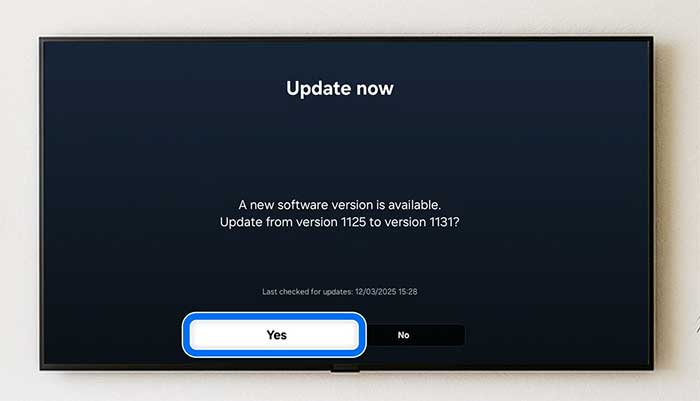
Allow five to fifteen minutes including the restart. Samsung’s own instruction is explicit: do not turn the TV off until the update is complete. The screen may sit unchanged for several minutes in the middle, and it may restart more than once — neither means it has failed.
Auto Update
The same Software Update menu holds an Auto Update toggle. Left on, the TV installs updates on its own, usually while it is in standby. Most people never need to run a manual check at all — the manual route matters when you want something sooner, or you are troubleshooting.
Method 2 — update from a USB drive
For a TV with no internet connection, or one where the online update refuses to complete. Samsung is one of the few manufacturers that still publishes firmware files for owners to install themselves, which makes this a genuine option rather than a workaround.
On your computer
- Go to the Samsung Download Center, choose your product type, and search for your exact TV model.
- Download the firmware file for that model. It arrives as a zip.
- Prepare a USB flash drive: it must be empty and formatted as FAT32.
- Extract the zip and copy all of the files it contained to the USB drive — at the top level, not inside any folder. This is the step people most often get wrong.
On the TV
Plug the drive into a USB port on the TV, then follow the same path as before: Settings → All Settings → Support → Software Update → Update Now. The TV finds the files on the drive and installs from them.
Match the model exactly
Samsung model numbers differ by region and by year in ways that are easy to miss — a single letter can separate two otherwise identical sets. Download only the file listed for your full model code, from Samsung’s own Download Center, and never from a third-party firmware site. A mismatched file on a TV is one of the few genuinely unrecoverable mistakes in this whole subject.
Finding your model number and current version
You need the full model code for the Download Center, and the current version to know whether an update is even worth doing. Both live under Settings → All Settings → Support → About This TV (some model years label it Contact Samsung).
The model code is also printed on a label on the back of the TV, which is often easier to read than navigating a menu on a set that is misbehaving. Our version-check guide covers where to find this on other device types too.
If the update will not install
- Check the connection. A weak wireless signal is the most common cause of a stalled download. A wired connection is noticeably more reliable for large updates.
- Power-cycle properly. Unplug the TV at the wall, wait a full 60 seconds, plug it back in. The remote’s power button only puts it into standby.
- Try the USB route. If the online update keeps failing, the USB method sidesteps the network entirely.
- Check the drive if USB failed. Empty, FAT32, files at the top level, not in a folder — get any of those wrong and the TV simply will not see the update.
If the TV is stuck on a logo or a black screen after an update rather than failing to start one, stop and read our failed update guide before unplugging it repeatedly.
Should you update?
Usually yes. Samsung updates fix real problems — HDMI handshake issues with consoles and soundbars, app crashes, and the compatibility work that keeps streaming services running as they change requirements. On a TV that is signed into your accounts and permanently on your network, the security fixes matter too.
The honest caveat is the same one that applies to every smart TV platform: Tizen updates have reshaped the home screen over the years and given more prominence to Samsung’s own free channels and promoted content. There is no supported way to go back to an earlier version, so if you are happy with your current layout, that is worth knowing before you press the button rather than after. It is a reason to be deliberate, not a reason to stay years behind.
Frequently asked questions
Related: Vizio TV firmware update · how to update a Roku TV · when an update fails. Every TV and streaming guide lives in TV & Streaming.