The quick version
On a VIZIO SmartCast TV: press the Menu button on the remote, go to System → Check for Updates, and confirm. Your TV also does this on its own while it is connected to Wi-Fi, so there is often nothing to install. If your menu looks nothing like that, you have an older pre-SmartCast set — skip to that section below.
Vizio is the brand where online instructions most often fail to match what is on the reader’s screen, because the menus changed substantially between TV generations and most guides only document one of them. This page covers both, and is honest about the one thing Vizio genuinely does not let you do.
How Vizio updates actually work
Vizio TVs are designed to update themselves. A set that is connected to the internet checks periodically and installs firmware on its own, typically while it is idle or in standby rather than while you are watching. New TVs frequently pull an update during initial setup, before you have finished configuring anything.
That is why the manual check so often reports nothing available: for most people the update already happened quietly. The manual option exists for when you want to pull one forward, or you are troubleshooting something and want to rule the firmware version out.
The manual check (SmartCast models)
- Press the Menu button on your VIZIO remote. On remotes without one, press the V or home button and open Settings from the row that appears.
- Select System.
- Select Check for Updates and confirm when asked.
- If an update is found it downloads and installs, and the TV restarts by itself. If not, the TV tells you it is up to date.
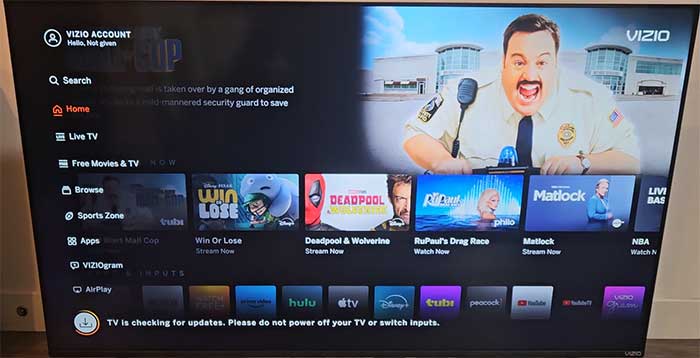
Leave the TV powered on and on Wi-Fi throughout. Expect five to fifteen minutes including the restart, and do not be alarmed by a stretch of black screen partway through.
Finding your current firmware version
Worth doing before you change anything, and essential if you are about to contact support. On SmartCast models it is under Menu → System → System Information, which lists the firmware version alongside the model number and serial number.
Vizio also publishes firmware information pages for individual models on its support site — search the model number from that System Information screen and you can see which version your set should be on. That is more than most manufacturers offer consumers, and almost nobody mentions it. It is the fastest way to answer “am I actually behind, or is my TV fine?”
If you would rather compare across devices, our version-check guide covers every device type in one place.
Older Vizio TVs, before SmartCast
This is where most Vizio instructions online quietly fall apart. Sets from roughly 2010 to 2015 ran Vizio’s earlier smart platforms — branded V.I.A. and V.I.A. Plus — and their menus are laid out differently. Readers with an older E-series or M-series set regularly report that the published steps do not match a single screen on their TV, and they are right.
| Era | Platform | Where updates live |
|---|---|---|
| 2016 onwards | SmartCast | Menu → System → Check for Updates |
| ~2013–2015 | V.I.A. Plus | Under the System or Help section of the main menu; wording varies by model |
| ~2010–2013 | V.I.A. | Often no user-facing update option at all — updates arrive automatically or not at all |
On the oldest sets, the practical answer is that there is nothing for you to press. Keep the TV connected and it will take whatever Vizio still sends it — which, for hardware this age, may be nothing. That is not a fault, it is end of support.
There is no USB update for Vizio TVs
This is the genuine difference between Vizio and its competitors, and it catches people out constantly.
Samsung, LG and Roku all publish firmware files that you can put on a USB stick and install on a TV with no internet connection. Vizio does not offer that route to consumers. There is no public download page where you fetch a file for your model and sideload it. If your Vizio cannot reach the internet, you cannot update it yourself — the fix is to get the TV online, or to contact Vizio support, who handle firmware directly in the cases that need it.
Ignore any site offering a Vizio firmware file
Because there is no official consumer download, every third-party site offering a “Vizio firmware download” is offering something Vizio did not publish for you. Installing an unofficial or mismatched file on a TV is one of the reliable ways to turn a working set into a dead one, and it is not covered by warranty. If your TV cannot get online, contact Vizio support rather than searching for a file.
Vizio TV won’t update — what to try
- Confirm the TV is actually online. Menu → Network → Test Connection. SmartCast can appear connected while having no working internet, which looks exactly like “updates are broken”.
- Power-cycle at the wall. Unplug the TV, wait a full 60 seconds, plug it back in. The remote’s power button only puts it in standby, which is not the same thing.
- Leave it on standby overnight, connected. Because Vizio schedules updates for idle periods, this genuinely works more often than repeatedly pressing Check for Updates.
- Check the model’s firmware page. If Vizio’s page for your model lists the version you already have, there is nothing wrong — you are simply current.
If the TV is stuck on a logo or black screen after an update, rather than failing to find one, go to our failed update guide before unplugging it repeatedly.
Should you bother?
For a connected TV signed into streaming accounts, yes — security fixes matter, and SmartCast updates also address app compatibility, which is what usually breaks first on a smart TV as services change their requirements.
The honest caveat is the same one that applies to every smart TV platform: updates have reshaped the SmartCast home screen over the years and given more space to Vizio’s own free channels and promoted content. You cannot roll a Vizio TV back to an older firmware version, so if you like your current layout, that is worth knowing before rather than after. It is not a reason to stay years out of date — but it is a reason not to chase updates you do not need.
Frequently asked questions
Related: Samsung TV software update · Hisense TV firmware update · when an update fails. Every TV and streaming guide lives in TV & Streaming.