Read this before following any Hisense guide
There is no single answer for “how to update a Hisense TV”, because Hisense does not build one smart TV. Depending on the model and the country it was sold in, your set runs VIDAA, Roku TV, Google TV, Android TV or Fire TV — and each has a completely different menu. Identify yours first, using the table below, then follow that section. This is why most Hisense instructions online do not match anyone’s screen.
Which platform is your Hisense running?
You do not need the model number for this — just look at the home screen when the TV starts up.
| What the home screen looks like | Platform |
|---|---|
| A purple background with a grid of channel tiles, and a remote with a purple Roku button | Roku TV |
| Rows of recommended content across the top, a Google Assistant button on the remote, “for you” style layout | Google TV |
| An apps row with the Android robot branding, Play Store present | Android TV |
| A blue-toned interface with an apps strip along the bottom and no Google or Roku branding | VIDAA (Hisense’s own) |
| Amazon-style rows, Alexa button on the remote, Prime Video prominent | Fire TV |
Roughly, VIDAA is common in Europe and Australia, while Roku TV and Google TV dominate the US line-up — but Hisense mixes platforms across model years and regions, so the badge on the box is not a reliable guide. What is on screen is.
VIDAA
Press Settings on the remote → Support → System Update → Check Firmware Update. If one is found, select Upgrade. The same menu usually holds an auto-update option worth leaving on.
Roku TV
Press Home → Settings → System → System update → Check now.
A Hisense Roku TV is a Roku TV in every way that matters — same software, same menus, same update process as a TCL or Onn Roku set. Our Roku TV guide covers it in full, including Roku’s official USB method for TVs with no internet connection.
Google TV
Select your profile icon in the top corner → Settings → System → About → System update.
Android TV
Press Home or Settings → Device Preferences → About → System Update → Check for Updates.
Fire TV Edition
Settings → My Fire TV → About → Check for Updates, then Install Update if one is waiting. Identical to a Fire TV Stick — our Firestick guide applies.
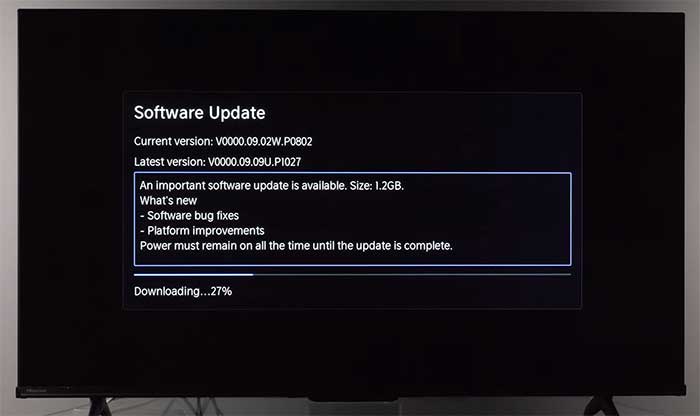
Whichever platform you are on, expect five to fifteen minutes including the restart, leave the TV powered on throughout, and do not be alarmed by a stretch of black screen partway through.
Updating by USB, with no internet
Hisense publishes firmware for owners to install themselves, which not every manufacturer does. The download is tied to your specific set — you enter the TV’s serial number to get the right file, in the same spirit as Roku’s hardware-ID system.
- Find your TV’s serial number — on a label on the back of the set, and usually also in the About or System Information screen.
- Go to Hisense’s official firmware download page for your country and enter the serial number when prompted.
- Format a USB flash drive as FAT32 and copy the firmware file to the root of the drive — not inside a folder.
- Plug the drive into the TV and open the same System Update menu for your platform. The TV should offer to install from USB.
The serial number requirement is there for a reason
Hisense ties the download to your serial because firmware differs by panel, region and platform on sets that look identical from the outside. A file from a third-party site, or one meant for another region’s version of your model, can leave the TV unable to start — and that is not covered by warranty. Only ever use Hisense’s own download page, and never a file someone shares on a forum.
If it will not update
- Check you are following the right platform’s steps. Far and away the most common reason a Hisense guide “does not work” — the menu described belongs to a different platform.
- Test the network. A weak signal stalls large downloads; a wired connection is more reliable if the set has an ethernet port.
- Power-cycle at the wall. Unplug, wait a full 60 seconds, plug back in. Standby is not the same as a restart.
- Accept that “no update available” is usually true. Firmware is released per model, region and platform, so a version another owner mentions may never come to your set.
If the TV is stuck on a logo or black screen after an update rather than failing to find one, go to our failed update guide before unplugging it repeatedly.
Should you update?
Generally yes. On smart TVs the practical benefit is app compatibility — streaming services keep raising their requirements, and firmware is what lets a set keep up. Security fixes matter too on a TV signed into your accounts.
The usual caveat applies: platform updates reshape home screens and add promoted content, and there is no supported way back to an earlier version. If your set is old enough that updates have stopped arriving entirely, that is end of support rather than a fault — and a current streaming stick is a far cheaper answer than a new television.
Frequently asked questions
Related: how to update a Roku TV · Samsung TV software update · when an update fails. Every TV and streaming guide lives in TV & Streaming.