The quick version
TCL does not run its own smart TV platform — its sets use Roku TV, Google TV or Android TV depending on the model and market. Most TCL sets sold in the US are Roku TVs, and on those the path is Home → Settings → System → System update → Check now. Check which platform you have first; the menus have nothing in common.
Which platform is your TCL running?
Look at the home screen rather than the model number:
| What you see | Platform |
|---|---|
| Purple background, grid of channel tiles, purple button on the remote | Roku TV |
| Rows of recommendations, profile icon top right, Google Assistant button | Google TV |
| Apps row with Android branding and the Play Store | Android TV |
TCL Roku TV
Press Home → Settings → System → System update → Check now. If an update is found it downloads, installs and the TV restarts by itself.
Worth being plain about this: a TCL Roku TV is a Roku TV. Same software, same menus, same update process as a Hisense or Onn Roku set — the TCL badge changes nothing. If you need the full detail, including Roku’s official USB method for a TV with no internet connection, our Roku TV guide covers all of it and applies to your set exactly as written.
TCL Google TV
Select your profile icon in the top corner → Settings → System → About → System update.
TCL Android TV
Press Home or Settings → Device Preferences → About → System Update → Check for Updates.
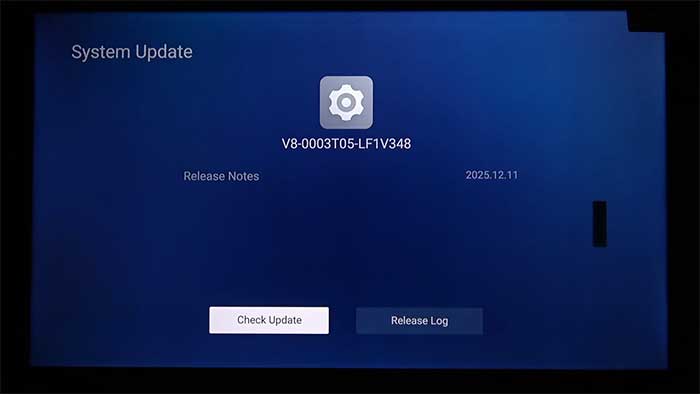
Whichever platform you are on, allow five to fifteen minutes including the restart, keep the TV powered on, and expect a stretch of black screen partway through. That part is normal — which brings us to the question TCL owners ask more than any other.
Black screen after an update — is it the update?
Usually not, and the distinction saves people a lot of wasted effort. Two very different problems get described the same way.
| What you are seeing | Most likely |
|---|---|
| Black screen during an update, TV otherwise responsive afterwards | Normal — the restart stage |
| Black screen straight after an update, no picture, no menus, remote does nothing | A failed update — recovery guide |
| Black screen but you can hear sound, menus respond blindly, backlight looks dead | A hardware fault, not firmware |
| Black screen only on one input or source | HDMI handshake or cable, not firmware |
The sound test settles it in ten seconds
Turn the volume up with the screen black. If you can hear audio and the TV responds to the remote, the TV is running fine and you are looking at a backlight or panel problem — a physical fault that no update, reset or reinstall will repair. If there is no sound and no response at all, that is the case where a failed update is genuinely possible. Do this before spending an evening on software fixes.
If the update will not install
- Confirm you are in the right platform’s menu. The most common reason a TCL guide seems not to work.
- Test the network. A weak signal stalls large downloads; ethernet is steadier if the set has a port.
- Power-cycle at the wall. Unplug, wait a full 60 seconds, plug back in — standby is not a restart.
- Accept “no update available”. Firmware ships per model, region and platform; another owner’s higher version number does not mean you are behind.
Should you update?
Generally yes. The practical benefit on a smart TV is app compatibility — streaming services keep raising their requirements and firmware is what lets an older set keep pace — plus HDMI fixes for consoles and soundbars, and security patches on a TV that is signed into your accounts.
The usual caveat applies: platform updates reshape home screens and add promoted content, and there is no supported way back. If your TCL is old enough that updates stopped arriving, that is end of support rather than a fault — and a current streaming stick is a far cheaper fix than a new television.
Frequently asked questions
Related: how to update a Roku TV · Hisense TV firmware update · when an update fails. Every TV and streaming guide lives in TV & Streaming.