The quick version
Press Home, then go to Settings → System → System update → Check now. If an update is waiting the TV downloads and installs it, then restarts itself. If your TV has no internet at all, there is an official USB method — it is further down this page, and it is fiddlier than most sites admit.
Method 1 — update over Wi-Fi
This is what almost everyone needs. Leave the TV on and plugged in throughout.
- Press Home on the Roku remote.
- Scroll down and open Settings.
- Select System, then System update.
- The screen shows your current software version and when it last checked. Select Check now.
- If an update exists, it downloads and installs, then the TV restarts on its own.
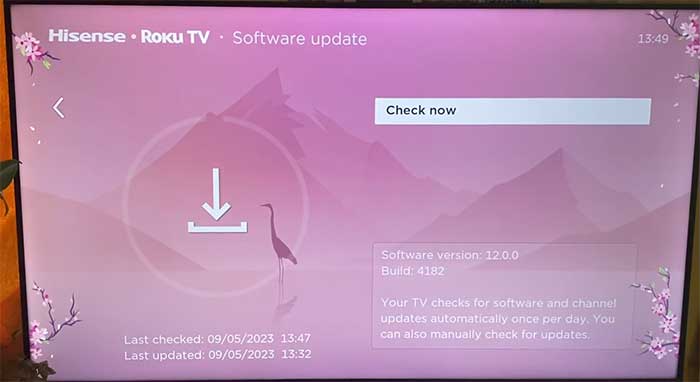
Expect five to fifteen minutes in total. The restart at the end is the slow part, and the screen can be black for a while during it — that is normal. Roku TVs also check for updates on their own roughly every day, so a manual check mostly matters when you want something sooner or you are chasing a bug.
Method 2 — update by USB, with no internet
Roku supports updating a TV that has never been connected to a network, but the process is genuinely unusual: it involves two codes passed back and forth between the TV and a computer. Most guides skip it. Here it is in full.
You will need: a USB flash drive of at least 256MB, and a computer with internet access.
On the TV — find your details
Go to Settings → System → About and note down the Hardware ID and Serial Number.
On the computer — download the file
- Visit tvupdate.roku.com.
- Choose your TV’s brand — TCL, Hisense, Onn, Sharp and so on.
- Enter the Hardware ID and Serial Number you just noted.
- Select Download Software to get a file called update.roku.
- Copy that file to the root of the USB drive — not inside a folder, or the TV will not find it.
Back on the TV — the two-code dance
- Plug the USB drive into the TV.
- Press Home, then go to Settings → System → System update → I can’t connect.
- The TV displays a 12-digit code. Type that code into tvupdate.roku.com on your computer.
- The website returns a 6-digit code. Enter that on the TV using the remote.
- The update starts immediately and the TV restarts when it finishes.
Where the USB method usually goes wrong
Two things account for most failures: the update.roku file being inside a folder rather than at the top level of the drive, and the file having been downloaded for a different TV. The codes are tied to the Hardware ID you entered, so a file downloaded for one set will not install on another — even the same model in the next room.
TCL, Hisense, Onn — it is the same TV underneath
Roku licenses its platform to TV makers, so a TCL Roku TV, a Hisense Roku TV, an Onn Roku TV and a Sharp Roku TV all run the same software and use the same menus. If your TV boots to the Roku home screen with the purple background, this page applies regardless of the badge on the bezel.
The one place the brand matters is the USB method, where you pick the manufacturer on Roku’s download page. Note that some of these brands also sell Google TV and Fire TV models — a Hisense with a Google TV interface is a different device with a different update process, covered in our Hisense guide.
Do you actually need an update — or a restart?
Worth saying plainly, because it saves a lot of people a lot of time: if your Roku TV is being slow, apps are crashing, or the remote feels laggy, a restart fixes it far more often than an update does.
To restart properly: Settings → System → Power → System restart. That is a genuine reboot, not the standby the power button does. For a deeper reset, unplug the TV at the wall for a full 60 seconds and plug it back in — that clears things a menu restart does not.
Update when you have a specific reason: a bug you have read is fixed, a new feature you want, an app that needs a newer Roku OS, or simply because you are months behind. Updating in the hope that it fixes an unrelated annoyance usually just costs you fifteen minutes.
If the update fails
- Check the network first. Settings → Network → Check connection. A weak signal is the most common reason a download stalls.
- Restart and retry. Settings → System → Power → System restart, then run Check now again.
- Try wired if you can. Roku TVs with an ethernet port are noticeably more reliable for large updates.
If the TV is stuck on the Roku logo or a black screen after an update rather than failing to download one, stop and read our failed update guide before unplugging anything repeatedly.
Can you turn Roku updates off?
Not really, and it is better to know that up front. Roku TVs check for and install updates automatically, and there is no setting to disable it. The only way to avoid updates entirely is to keep the TV off the internet — which costs you every streaming app on it, so it is rarely a trade worth making.
Roku OS updates have changed the home screen layout and added more promoted content over the years. If that matters to you, it is worth knowing there is no supported way to go back to an older version once one has installed.
Frequently asked questions
Related: how to update a Firestick · TCL TV software update · when an update fails. Every TV and streaming guide lives in TV & Streaming.