The quick version
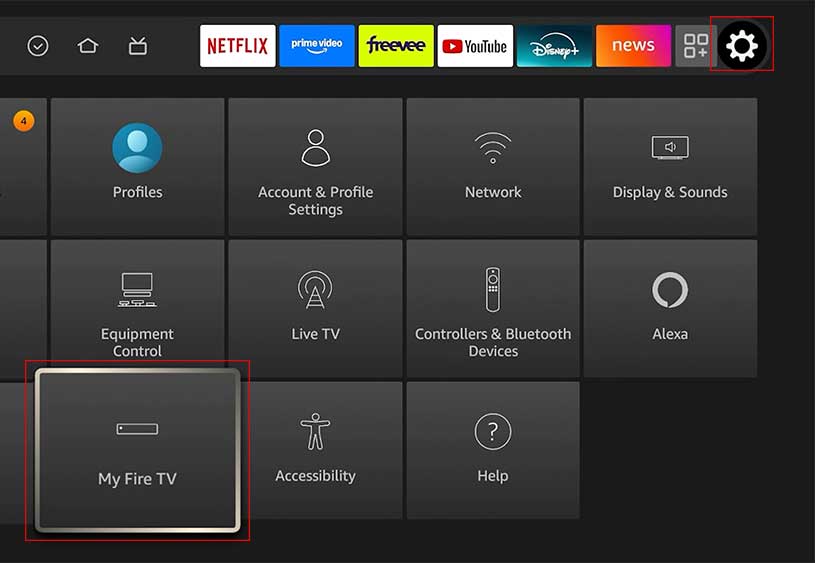
From the Fire TV home screen: Settings → My Fire TV → About → Check for Updates. If one is waiting, the button changes to Install Update. The whole thing takes about five minutes, and the stick restarts on its own at the end. Every Firestick model uses this same path.
Step by step
Before you start: leave the stick plugged into power for the whole process, and stay on Wi-Fi. It is a small download, but the install stage is the one you do not want interrupted.
- Open Settings. From the home screen, press up on the remote until the top menu bar is highlighted, then scroll right to the gear icon.
- Select My Fire TV. On some older Fire OS versions this is called Device or Device & Software — same menu, different label.
- Select About. This screen shows your device name, storage, and the Fire OS version you are currently on. Worth noting that version down before you change it.
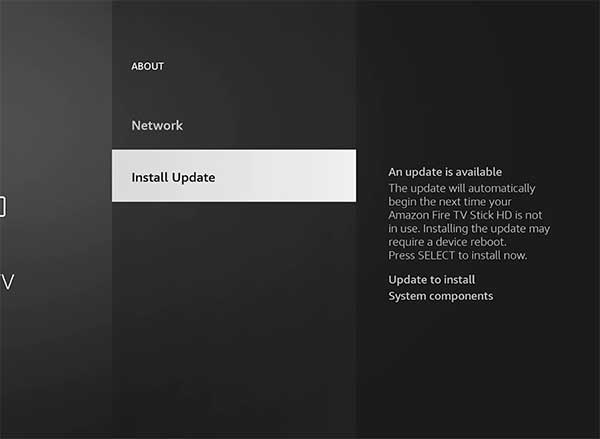
- Select Check for Updates. If you are current, the button reads “Check for Updates” and nothing happens when you press it. If an update is waiting, it reads Install Update instead.
- Let it finish. The stick downloads, installs, and restarts by itself. Expect the screen to go black for a stretch during the restart — that part is normal and is not a failure.
How long it takes
Around five minutes on a decent connection, most of which is the install rather than the download. The restart afterwards can take a couple of minutes on its own, and the home screen is often sluggish for the first minute after it comes back while the stick rebuilds its cache. None of that is a problem — give it a moment before deciding something went wrong.
Updating apps is a different thing
A lot of people looking for “how to update Firestick” actually want an app updated — Netflix crashing, Prime Video misbehaving, a sideloaded app out of date. That is a separate menu, and updating the system will not do it.
Apps update themselves by default. To check or change that: Settings → Applications → Appstore → Automatic Updates. To force a single app to update now, open the Appstore, find the app, and it will show an Update button if one is pending.
If one specific app is misbehaving, clearing its cache is usually faster than either kind of update: Settings → Applications → Manage Installed Applications, pick the app, then Clear Cache. Try that before Clear Data, which signs you out.
Which Firestick do I have?
The menu path is the same across all of them, but the model matters when you are checking whether yours still receives updates at all. Your device name is on the same About screen as the version number. Amazon has shipped these:
| Model | Released |
|---|---|
| Fire TV Stick HD | 2026 |
| Fire TV Stick 4K Plus | 2025 |
| Fire TV Stick 4K Select | 2025 |
| Fire TV Stick HD (with Alexa Voice Remote) | 2024 |
| Fire TV Stick 4K Max — 2nd gen | 2023 |
| Fire TV Stick 4K — 2nd gen | 2023 |
| Fire TV Stick 4K Max — 1st gen | 2021 |
| Fire TV Stick — 3rd gen | 2020 |
| Fire TV Stick Lite — 1st gen | 2020 |
| Fire TV Stick 4K — 1st gen | 2018 |
| Fire TV Stick Basic Edition | 2017 |
| Fire TV Stick — 2nd gen | 2016 |
| Fire TV Stick — 1st gen | 2014 |
If yours is from 2018 or earlier, it is worth checking whether it still gets updates — Amazon has published end-of-support dates for the older generations, and a stick that no longer receives them will keep working but stops getting security fixes. We track which models are affected in Fire TV Stick end of support.
If the update fails or gets stuck
Three things fix most Firestick update problems, in this order:
- Free up storage. The most common cause on older sticks with 8GB. Settings → Applications → Manage Installed Applications, and uninstall something you do not use. An update that will not install often just has nowhere to go.
- Restart properly. Unplug the power cable from the stick, wait 30 seconds, plug it back in. Do not just use the remote — a genuine power cycle clears more.
- Check the connection. Settings → Network, highlight your network and press play/pause to run a connection check.
If the stick is stuck on the Amazon logo or a black screen after an update rather than simply refusing to install one, do not keep unplugging it — go to our failed update guide for the safe recovery order.
Should you update at all?
Mostly yes — but this is one of the devices where the honest answer has a caveat.
Reasons to update: security fixes matter on a device that is permanently connected to your home network and signed into your accounts. Updates also fix genuine bugs — app crashes, remote lag, HDMI handshake problems with a soundbar or receiver.
The catch nobody mentions
Fire OS updates have repeatedly changed the home screen — rearranging rows, giving more space to Amazon’s own content and to advertising. If you have your setup exactly how you like it, an update can change that, and there is no going back: Amazon does not support downgrading Fire OS. On an older stick, a new version can also make the interface noticeably slower. Nothing here outweighs a security fix, but it is worth knowing before you press the button rather than after.
Firesticks also update themselves automatically by default, so “should I update” is often really “can I stop it updating”. You have limited but real control over the timing — we cover what actually works in how to stop Firestick auto-updates.
Frequently asked questions
Related: how to update a Roku TV · Fire TV end of support · when an update fails. Every TV and streaming guide lives in TV & Streaming.