The universal rule
On almost every device, the firmware version is in Settings → About (sometimes called System, Support, Device Info or Status). If you only remember one thing, look for the word “About”. The exact path for each device type is below.
Jump to your device:
- Smart TVs and streaming devices
- Wi-Fi routers
- Printers
- AirPods and wireless earbuds
- Game consoles
- Windows PC (BIOS/UEFI)
- Phones and tablets
Smart TVs and streaming devices
Samsung: Settings → All Settings → Support → About This TV. The software version is listed there; the same Support menu holds Software Update if you want to install one.
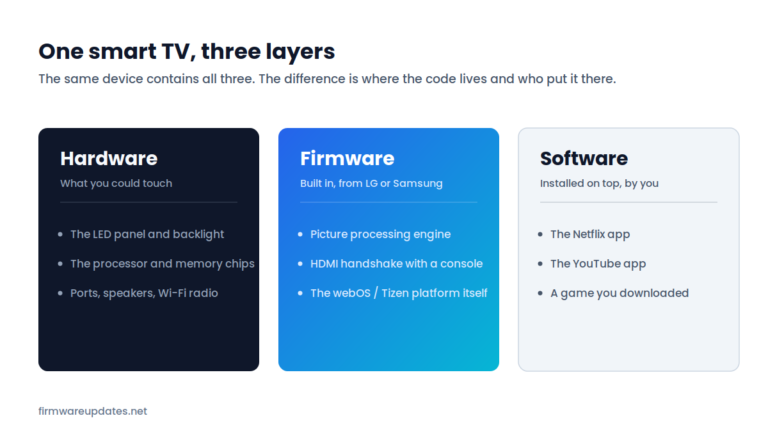
LG: Settings → All Settings → General → About This TV → Software Version. LG labels firmware as “software” throughout its menus.
Roku and Roku TVs: Home → Settings → System → About. The screen shows the Roku OS version, build number and model.
Fire TV Stick: Settings → My Fire TV → About → the Fire OS version sits under the device name.
Hisense, TCL and Onn sets usually run one of the platforms above — check which one your TV boots into and follow that path, not the brand’s.
Wi-Fi routers
Routers do not have a screen, so the version lives in the admin page:
- Type your router’s address into a browser on a device connected to it — usually
192.168.0.1or192.168.1.1, printed on the label underneath. - Log in. The default credentials are on that same label if they were never changed.
- The firmware version usually appears on the first page after login, under a heading such as System Status, Device Information or Administration → Firmware Upgrade.
Netgear, TP-Link, ASUS and Linksys all also have phone apps that show the version without a browser. If your router came from your internet provider, the version may be hidden entirely — those are usually updated remotely by the provider, not by you.
Note the hardware revision too. Router labels carry something like “Ver 2.0” or “v3” next to the model. Firmware files are specific to that revision, so you need both numbers before downloading anything.
Printers
Menu names vary a lot between printer lines — an HP OfficeJet, a LaserJet and a DeskJet each word it differently — so the two reliable methods are the ones that work on nearly all of them.
Method 1 — print a report. From the printer’s control panel, find Reports, Print Reports or Setup → Reports, then print the Printer Status Report or Configuration Page. The firmware version is printed on it, usually near the model and serial number. This works even on printers with a two-line display.
Method 2 — the built-in web page. Print a network configuration page to find the printer’s IP address, type that address into a browser on the same network, and the printer’s own web interface opens. The firmware version is listed on the home or Information tab. This is the fastest route for network printers, and the one to use for an HP OfficeJet if the on-screen menus are not cooperating.
AirPods and wireless earbuds
AirPods, on an iPhone or iPad: put the AirPods in their case, open the lid and keep them near the phone, then open Settings → Bluetooth → tap the ⓘ button next to your AirPods → scroll down to the About section. The firmware version is listed there.
Apple does not offer a manual update button — AirPods update themselves while charging and in range of your device, so checking the version is mainly how you confirm an update has landed.
Sony, JBL, Bose, Samsung and most other brands: open the brand’s companion app (Sony Headphones Connect, JBL Headphones, Bose app, Galaxy Wearable) with the earbuds connected. The version is under a Settings, About or Device Info section inside the app. There is no way to see it without the app.
Game consoles
PlayStation 5: Settings → System → System Software → System Software Update and Settings. The current version is shown at the top.
Xbox Series X|S: Profile & system → Settings → System → Updates. The OS version is listed under System info.
Nintendo Switch: System Settings → System → System Update, or scroll to the bottom of System Settings where the version is displayed in the corner.
Windows PC (BIOS/UEFI)
The quickest way needs no restart: press Windows + R, type msinfo32 and press Enter. In the System Information window, the row BIOS Version/Date shows the version and the date it was released.
You can also read it in the BIOS setup screen itself during boot, but there is no reason to restart for a number Windows will just tell you. We cover the full picture, including how to tell whether yours is out of date, in how to check your BIOS version.
Phones and tablets
On Android: Settings → About phone → the build number and Android version. On iPhone and iPad: Settings → General → About → Software Version. Phones bundle firmware into the operating system update, so there is normally only one version number to care about.
What the version number actually tells you
Firmware versions look like T-KTM2DEUC-1420.5 or 19.5.4.2 or 6A342, and there is no industry standard behind them. What matters is not decoding the number but comparing it: find your version, then find the latest one on the manufacturer’s support page for your exact model. If they match, you are current. If they do not, the support page will usually tell you what changed in between.
Two things worth knowing. A higher number is not always newer for devices sold in different regions — manufacturers sometimes run separate version lines per market, so always compare against the page for your model and region. And a device that has never been connected to the internet may be years behind while still reporting a perfectly valid version.
Once you know where you stand, deciding whether to update is the next question — and it is not always yes.
Frequently asked questions
Related: what is firmware? · is it safe to update? · when an update fails. All of our explainers live in Firmware Basics.