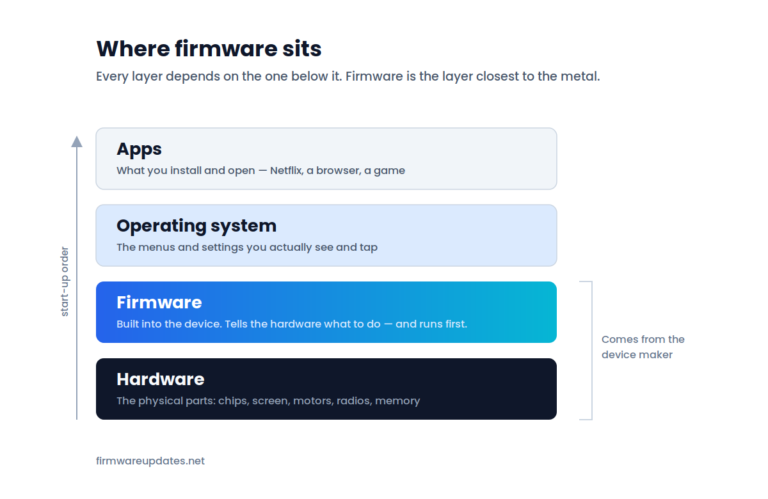
The short answer
Yes, in almost every case. An official update, installed with steady power and a stable connection, is routine — millions run without incident every day. The three things that actually cause damage are losing power mid-write, using a file from somewhere other than the manufacturer, and the occasional bad release from the manufacturer itself.
If you are reading this with a progress bar on a screen in front of you: leave it alone and read the next section. Nothing you need to do right now involves touching the device.
“Do not power down your system” — what that actually means
This warning appears on TVs, motherboards, printers, consoles and routers, and it is the single most-searched phrase about firmware — usually typed by someone watching a bar that has not moved in a while. Here is what is happening behind it.
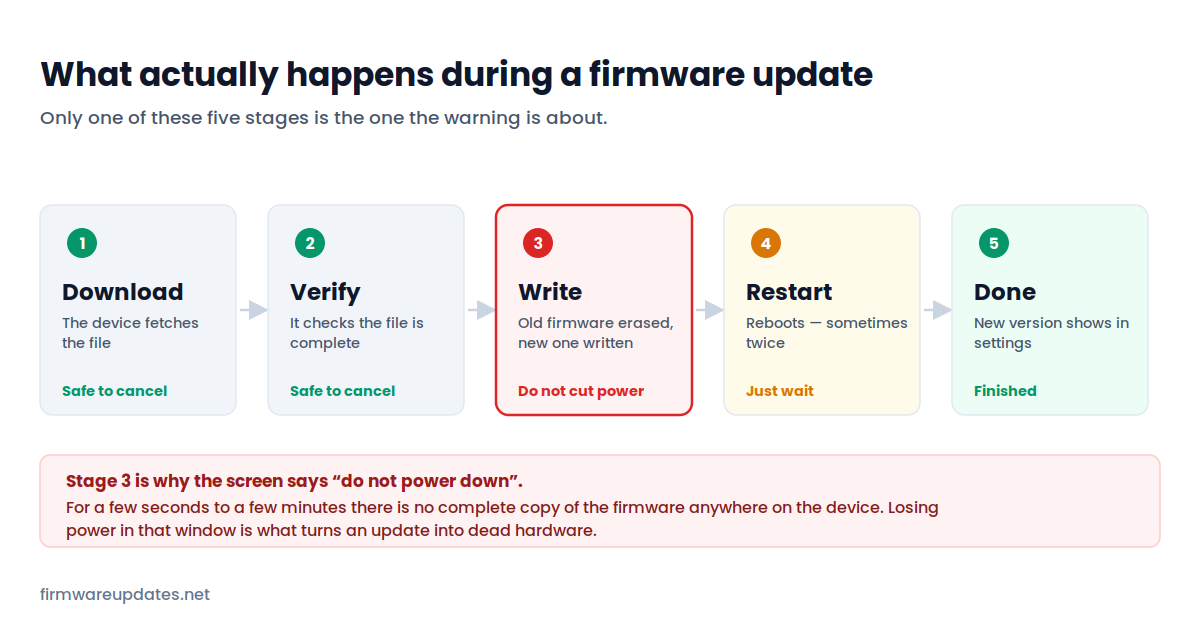
An update is not one long dangerous operation. It is five stages, and only the third one is risky. During the write stage the device erases the old firmware and writes the new version in its place. For that window — a few seconds on a pair of earbuds, a couple of minutes on a TV or a motherboard — there is no complete, working copy of the firmware anywhere on the device. Cut the power then and the device has nothing to start from.
The warning stays on screen for the whole process because the device has no reliable way to tell you which second is the dangerous one. So it asks you to wait through all of it. That is also why “it has been stuck on 47% for four minutes” is usually not stuck — the percentage often tracks the download, then the screen sits still through the write while nothing visible happens.
What actually happens if the power does go out
Less often a disaster than people fear. Many modern devices — most routers, most motherboards, a lot of SSDs and TVs — keep a second copy of the firmware, or a small recovery program that cannot be overwritten. If a write is interrupted, the device notices the damaged firmware on the next boot and either rolls back or drops into a recovery mode you can escape with a USB stick.
Devices without that safety net are the ones that end up genuinely dead, and cheaper hardware is likelier to lack it. You have no way to know which category yours falls into from the outside — which is the whole argument for not finding out.
If an update looks stuck right now
Wait longer than feels reasonable — ten to twenty minutes on a TV or motherboard is not unusual, and the screen may not change at all in that time. Do not unplug, do not hold the power button, do not switch it off at the wall. If it is still frozen after that, our failed update guide has the realistic wait times for each device type and the safe recovery order.
The real risks, ranked
Three things cause almost every firmware disaster. They are not equally likely, and the order matters.
1. Power or connection lost during the write
By far the most common cause, and almost entirely preventable. A laptop on battery that dies, a desktop on a socket someone switches off, a router updated during a thunderstorm, a phone that walks out of Bluetooth range while earbuds are updating. Every one of these is avoidable with two minutes of thought before you start.
2. A file from the wrong place
Only a risk when you update manually — from a USB stick or a desktop tool. Model numbers in consumer electronics are close enough to be genuinely confusing, and hardware revisions of the same model can need different files. A file meant for the v2 of your router will install happily onto the v1 and leave it dead. Download from the manufacturer, and match the model and revision printed on the label, not the one on the box.
3. A bad release from the manufacturer
Rare, but it happens, and it is the one you cannot prevent by being careful. A release ships with a bug that breaks a feature, drains battery, or in the worst cases stops a device booting. Manufacturers usually pull these within days. It is the entire argument for the waiting strategy further down this page.
The risk of not updating
Skipping updates feels like the cautious choice. For some devices it is the opposite.
Anything connected to the internet and reachable from outside — routers first and foremost, but also cameras, doorbells and network storage — is a target. Vulnerabilities in router firmware are found regularly, published, and then used at scale to recruit unpatched devices into botnets. The fix almost always already exists as a firmware update the owner never installed. For this category of device, an out-of-date firmware version is a bigger practical risk than the update itself.
For devices with no internet exposure — a monitor, a pair of headphones, an SSD that is working fine — the calculation is different. There is no urgency, and “if it is not broken” is a perfectly reasonable position.
When waiting is the smarter move
Three situations where we would not install immediately:
- The release is brand new and nothing is broken. If a version landed this week and your device is working, waiting a week or two costs you nothing and lets other people find the bugs. This does not apply to updates flagged as security fixes.
- The update is known to remove something. Printer firmware has been used to block third-party ink cartridges that worked the day before. Streaming devices have used updates to redesign the home screen and add advertising. If you rely on a behaviour the update changes, installing it is often a one-way door.
- The device is close to the end of its supported life. Late updates for old hardware are sometimes rushed and lightly tested. Once a manufacturer has announced end of support, the calculation shifts.
Waiting is not the same as never. Set yourself a reminder rather than letting a device drift years out of date — that is how the router problem above starts.
The safe-update checklist
Six things, two minutes, and almost every avoidable failure is off the table:
- Secure the power. Laptop on the charger. Nothing plugged into a switch anyone might flick. If storms are forecast, do it another day.
- Write down your current version first. If the update causes a problem, the first thing support will ask is what you were on before. Here is where to find it on each device type.
- Read what is in the release. Manufacturers publish release notes. Two minutes there is what tells you whether a feature you use is about to change.
- Only use the manufacturer’s file. Their site, their support page, matched to your exact model and hardware revision. Never a third-party mirror.
- Save your settings if you can. Routers let you export a configuration backup — do it, because some updates reset everything.
- Then leave it completely alone until it says it is finished, however long that feels.
Frequently asked questions
Related: what is firmware? · what end of support means · when an update fails. All of our explainers live in Firmware Basics.