The short answer
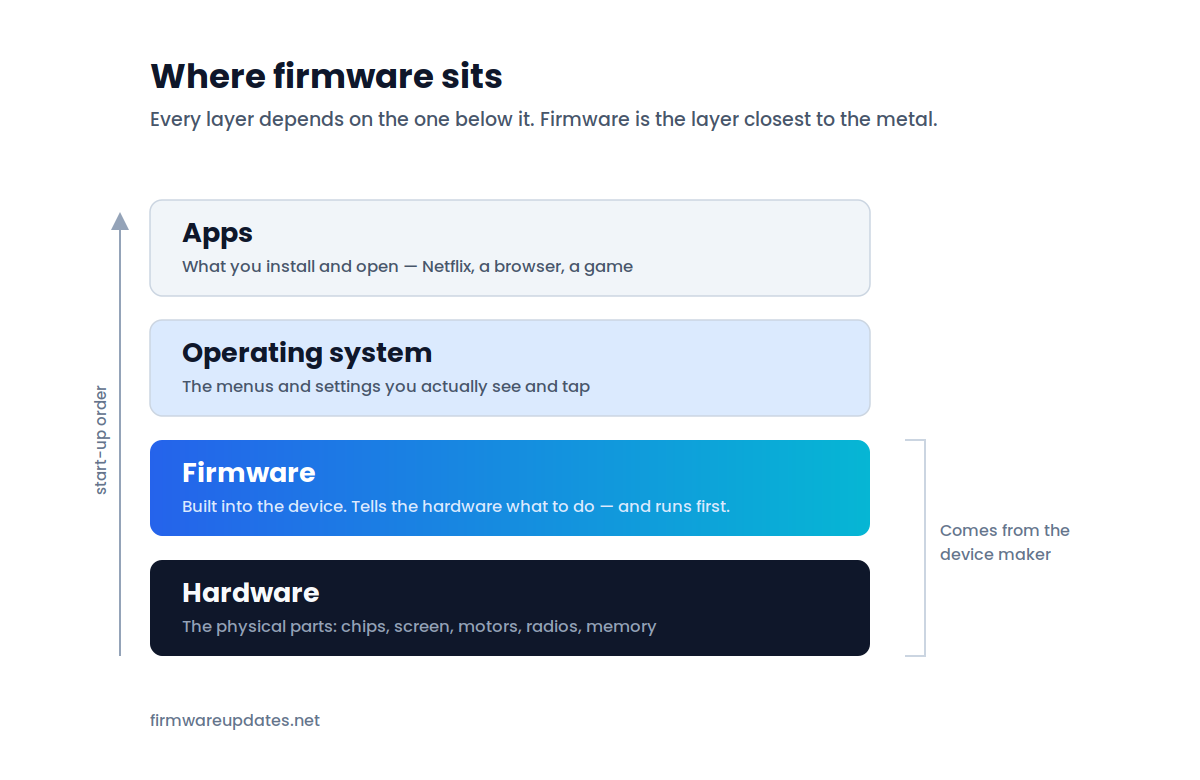
Firmware is the software built into a piece of hardware to make that hardware work. Unlike the apps on your phone, it does not live on your computer or in the cloud — it lives on a chip inside the device itself, and it runs first, before and underneath everything else you see.
Most people meet the word for the first time when a TV, a router or a pair of earbuds announces “a firmware update is available” and asks for permission to restart. This page explains what that actually means, what firmware does all day inside your devices, and why manufacturers keep sending updates for it.
What firmware actually does
It wakes the hardware up
When you press the power button, the hardware inside your device knows nothing about itself. A processor is just a piece of silicon waiting for instructions. It does not know which pins lead to the screen, which lead to the speaker, or where the storage is.
Firmware is that first set of instructions. It identifies each component, checks it is working, wires everything together and only then hands control over to whatever runs on top — the operating system, the app platform, the streaming interface. On a PC, this first-instructions job is done by the BIOS or UEFI, which is simply the name firmware goes by on a motherboard.
And then it keeps running
Waking the device up is only the beginning. Firmware stays in charge of the hardware for as long as the device is on. The firmware in your router decides how traffic is handled and which security rules apply. The firmware in your printer controls how the print head moves and whether it accepts the cartridge you just installed. The firmware in your earbuds runs the noise cancellation, the touch controls and the battery management.
That is why a firmware update can change how a device behaves so dramatically — and why it occasionally changes things you did not want changed.
Everyday examples
Almost everything electronic in your home runs firmware. Here is what it is responsible for in the devices people ask us about most:
|
Device |
What its firmware controls |
How it usually updates |
|---|---|---|
|
Smart TV |
Picture processing, the app platform, HDMI handshakes with other devices |
Over Wi-Fi, or from a USB stick |
|
Wi-Fi router |
How traffic is routed, Wi-Fi bands, security patches |
Admin page or the manufacturer’s phone app |
|
Printer |
Print head movement, cartridge checks, network and scanning features |
Printer menu or desktop software |
|
Wireless earbuds |
Bluetooth connection, noise cancellation, touch controls, battery |
Silently, through the companion phone app |
|
SSD (drive) |
How data is spread across memory cells, error correction, speed |
A manufacturer tool on your computer |
|
Car infotainment |
The screen, CarPlay and Android Auto, radio, sometimes charging behaviour |
USB stick, over-the-air, or at the dealer |
Firmware vs software vs drivers vs the operating system
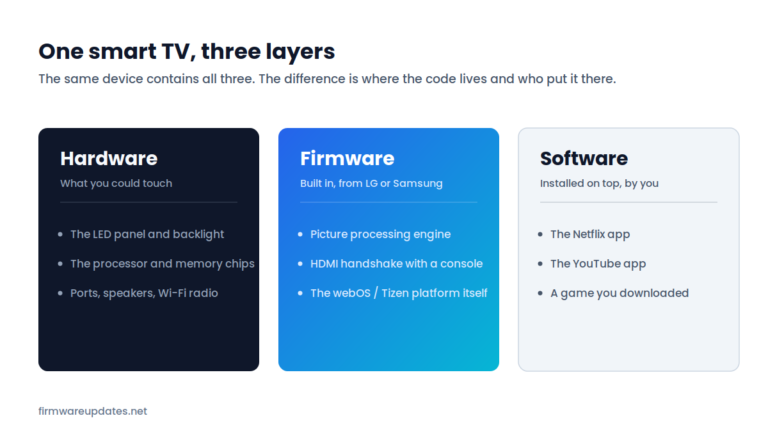
These four words get used interchangeably, and manufacturers are not consistent either — LG calls its TV firmware a “software update”, Sony calls its console firmware “system software”. The useful distinction is not the name but where the code lives and who is responsible for it.
|
Where it lives |
Who updates it |
Without it |
|
|---|---|---|---|
|
Firmware |
On a chip inside the device |
The device manufacturer |
The device will not start at all |
|
Operating system |
On the device’s main storage |
The OS maker (Google, Apple, Roku…) |
Hardware works, but there is nothing to interact with |
|
Apps / software |
On top of the operating system |
Whoever made the app |
Device works fine, that one feature is missing |
|
Drivers |
On your computer, not on the device |
Your computer’s OS or the device maker |
The device works, but your computer cannot talk to it |
The driver row is the one that trips people up most often: a driver is not part of your printer, it is the translator your computer uses to speak to it. We break both comparisons down properly in firmware vs software and firmware vs driver.
Where firmware actually lives
Firmware is stored on a dedicated memory chip inside the device — historically a ROM chip (read-only memory, which could not be changed after manufacturing, hence the “firm” in firmware), and today almost always flash memory, which can be rewritten. That single change is why firmware updates exist at all: devices used to ship with their behaviour fixed for life.
Because it sits on its own chip, firmware survives things you might expect to wipe it. A factory reset returns your settings to default but leaves the firmware version exactly where it was. Reinstalling a computer’s operating system does not touch the BIOS. Deleting everything from a phone does not remove its modem firmware.
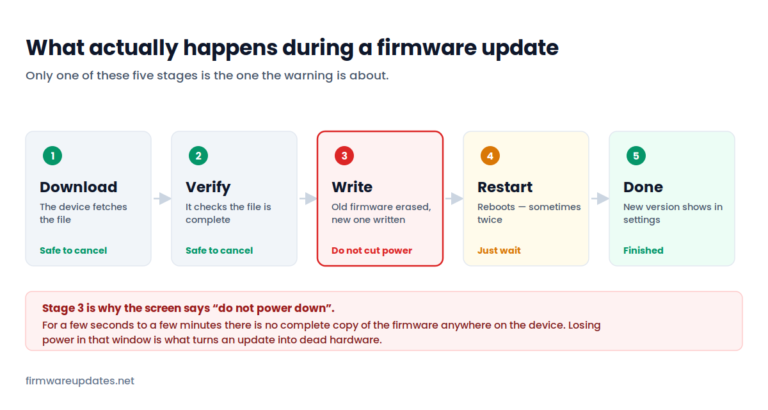
It also explains why a failed firmware update is more serious than a failed app install. You are not replacing a file on top of a working system — you are rewriting the thing that starts the system. That is the reason every update screen tells you not to cut the power, and it is worth understanding what the risks actually are before you start one.
Is firmware the same as embedded software?
Nearly, and in everyday use the two words are swapped freely. “Embedded software” is the broader term: any software written to run on a device that is not a general-purpose computer — a washing machine, a fitness tracker, a traffic light. “Firmware” usually means the layer of that software sitting closest to the hardware, the part that controls the components directly.
On a simple device — a Bluetooth speaker, say — they are the same thing, because the firmware is all the software there is. On a smart TV, the embedded software includes the whole app platform, while the firmware proper is the layer underneath it.
Why devices keep pushing firmware updates
Four reasons cover almost every update you will ever be offered:
- Security patches. The most important one, and the least visible. Routers are the clearest example: unpatched routers are routinely recruited into botnets, and the fix is almost always a firmware update the owner never installed.
- Bug fixes. The Wi-Fi that drops every few days, the remote that lags, the printer that jams on one paper size — a lot of “this device is just bad” is a bug that was fixed months ago.
- New features. Support for a new video format, a new codec, a redesigned menu, compatibility with an accessory released after the device was.
- Compatibility. Standards move. A TV bought in 2020 may need an update to handle a console or soundbar bought in 2026.
And one reason nobody advertises: updates sometimes take things away
Firmware updates are not always purely additive. Printer manufacturers have used them to block third-party ink cartridges that worked the day before. Streaming devices have used them to redesign the home screen and add advertising. Features occasionally move behind an account you now have to create. This is not a reason to stop updating — but it is a reason to know what an update contains before you install it, which is why every guide on this site includes an honest “should you update?” section.
How firmware updates reach your device
There are five common delivery routes, and which one applies depends entirely on the device:
- Automatically, overnight. Most modern TVs, streaming sticks and smart home devices update themselves while idle and connected. You often never see it happen.
- From a menu on the device. A “check for updates” button in Settings, usually under About, System or Support.
- Through a companion app. How earbuds, headphones, cameras and most smart home gear are updated — the app does it in the background while the device is connected.
- From a USB stick. The fallback when a device has no internet connection, common on TVs and older printers. You download the file from the manufacturer, copy it to a USB drive, and the device reads it.
- Through desktop software. How SSDs, monitors, some printers and motherboards are updated — a small tool from the manufacturer running on your computer.
Whichever route your device uses, the first step is always the same: find out which version you are on now. That is a different menu on every device, so we keep the paths for all of them in one place — how to check your firmware version.
Only ever download firmware from the manufacturer
Third-party sites offering firmware files are the single most common cause of permanently dead devices. The wrong file for a near-identical model number can be unrecoverable. We never host firmware files here, and every download link on this site points at the manufacturer’s own support page.
What if an update goes wrong?
Most firmware updates finish without incident. When one does not, the two things that matter are: do not cut the power, and do not assume the device is dead because it has been on the same screen for ten minutes — some updates genuinely take that long, and pulling the plug during a write is what turns a stalled update into a broken device.
If you are reading this because something is stuck right now, go to firmware update failed — what to do first, which has the realistic wait times per device type and the safe recovery order.
Frequently asked questions
Next: see how the terms line up in firmware vs software, or find your device’s current version with our version-check guide. Every device guide on this site lives in Firmware Basics.