The short answer
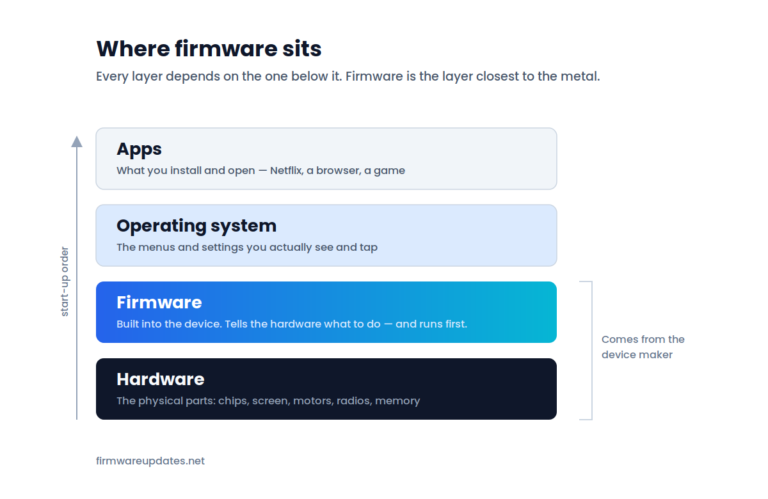
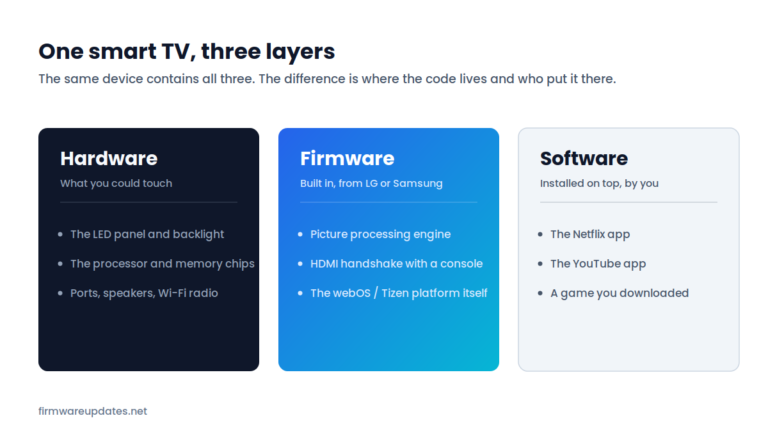
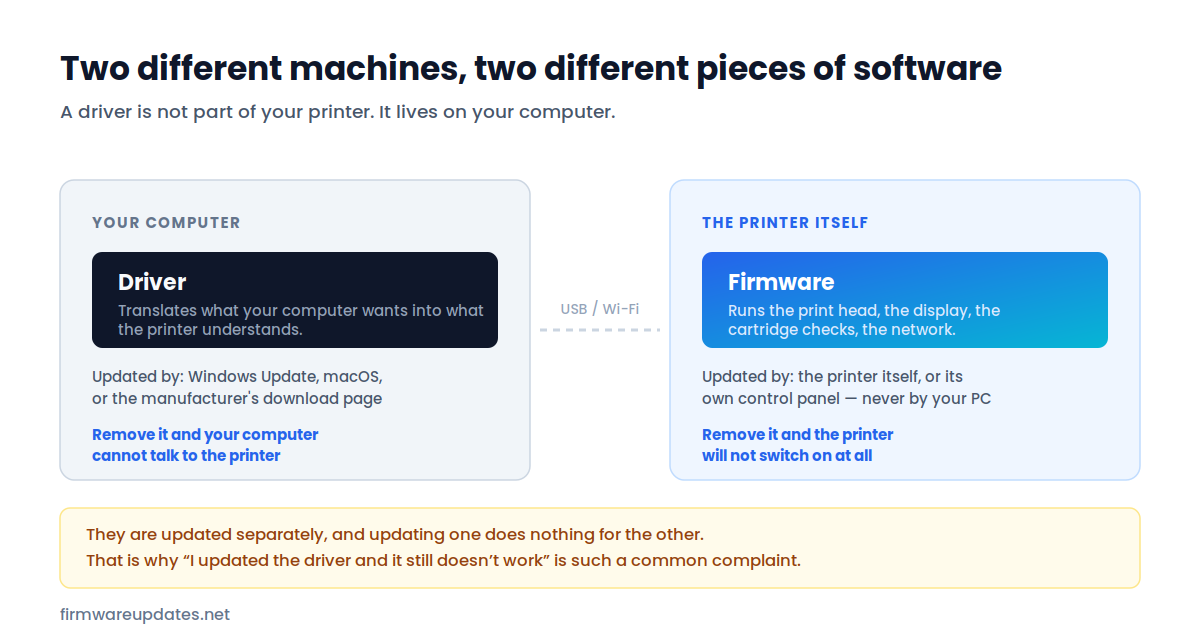
They live on different machines. Firmware is inside the device and makes the device work. A driver sits on your computer and lets your computer talk to that device. Updating one does nothing for the other.
This is the single most useful distinction in the whole subject, and the one people get wrong most often — usually while trying to fix a printer. If you have ever updated a driver, restarted, and found the problem still there, this page explains why.
The printer example, because it is where this always comes up
Your printer contains firmware. That firmware runs the print head, the display on the front, the network connection, and the checks that decide whether it accepts the cartridge you just put in. It is there whether or not a computer is anywhere near it — which is why the printer can photocopy on its own.
The driver is not in the printer at all. It is a small piece of software on your laptop that translates “print this document” into instructions this particular model understands. Every computer that prints to that printer needs its own copy. The printer neither knows nor cares which drivers exist.
So: one printer, one firmware. Four computers printing to it, four separate drivers.
Side by side
| Firmware | Driver | |
|---|---|---|
| Lives on | The device | Your computer |
| How many | One per device | One per computer that uses the device |
| Updated by | The device itself, or its own control panel | Windows Update, macOS, or a download from the maker |
| Without it | The device will not switch on | The device works — your computer just cannot use it |
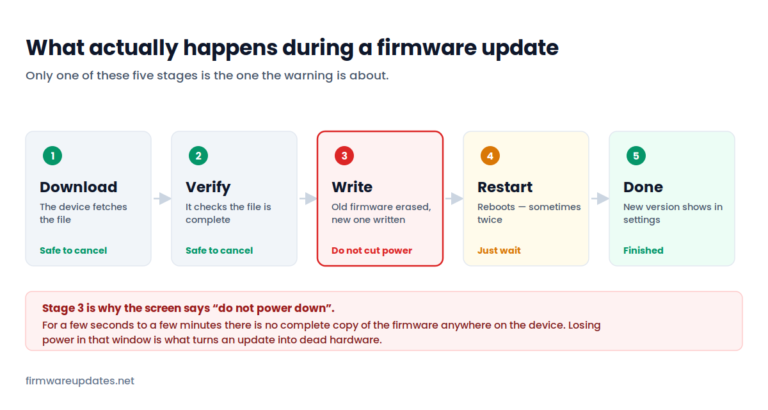
| Risk when updating | Real: an interrupted update can brick the device | Low: a bad driver can be rolled back or reinstalled |
That last row is the practical reason to know which one you are dealing with. A driver update is close to free to try. A firmware update deserves a minute of thought first — see is it safe to update firmware?
Which one is causing my problem?
Usually you can work it out in a few seconds, without installing anything. The question to ask is: does the device misbehave on its own, or only when a particular computer is involved?
| What you are seeing | Almost certainly |
|---|---|
| Works from one computer, not another | Driver |
| Misbehaves from every device, including its own control panel | Firmware |
| New laptop cannot find the device at all | Driver |
| Printer rejects a cartridge it accepted last week | Firmware |
| Device works, but a feature that was advertised is missing | Firmware |
| Error in Windows Device Manager, or a crash when printing | Driver |
| Device is slow or drops off Wi-Fi regardless of what is connecting | Firmware |
| Prints fine but the wrong size, colours or quality settings | Driver |
The single best test costs nothing: try the device from something else. Print from a phone. Scan from the printer’s own screen. Open the router’s admin page from a different laptop. If the problem follows the device everywhere, it is not a driver.
Where drivers come from
Windows and macOS both carry a large library of generic drivers and install one automatically when you connect something. That is usually enough to print, and occasionally not enough to use everything the device can do — duplex printing, scanning, or the utilities that show ink levels often need the manufacturer’s own driver package instead.
Two things worth knowing. Windows Update will sometimes replace a manufacturer driver with its generic one after an update, which can make a working feature quietly disappear. And driver download sites that are not the manufacturer are a well-known route for bundled junk — there is no reason to use one, because every manufacturer publishes drivers free on its own support pages.
“Driver updater” software is not worth it
Programs that promise to scan your PC and update every driver at once solve a problem most people do not have. Drivers that are working do not need updating, and these tools have a long history of installing the wrong versions, nagging for payment, or being outright unwanted software. Update a driver when something is broken, from the manufacturer’s page, and leave the rest alone.
Do you need to update both?
Not usually, and not at the same time. They are independent, so update whichever one matches the problem in the table above.
The exception is when a firmware update changes something the driver relies on — occasionally after a big printer firmware release, the manufacturer publishes an updated driver alongside it. If a device starts behaving strangely from every computer shortly after a firmware update, check whether a matching driver was released too.
For printers specifically, our HP printer firmware guide covers the firmware side, including the ink-cartridge behaviour that firmware updates are known for changing.
Frequently asked questions
Related: what is firmware? · firmware vs software · check your firmware version. All of our explainers live in Firmware Basics.